




When we say Confluence technical documentation, we mean any structured content – be that API references, runbooks, architecture diagrams, SOPs or more – created and maintained inside Atlassian Confluence.
This guide covers what technical documentation in Confluence looks like in practice, how to set it up, and how to scale it as your team grows.
We’ll also touch on why Confluence works so well as a technical content repository.
What Is Confluence Technical Documentation?
Content in Confluence is organized into spaces (think, departments or products) and pages (individual documents).
Pages sit in hierarchies, link to each other, and can be structured with templates so every doc of the same type follows the same format.
There are several reasons why Confluence is a practical choice for technical documentation:
- Centralized knowledge base: All documentation lives in one place, searchable across the entire organization. No more hunting through shared drives or Slack threads. (Shudder)
- Structured page hierarchy: Spaces contain pages, and pages contain child pages. Simple. A well-structured Confluence space mirrors the structure of the product or team it documents, meaning it should always be easy to find the technical documentation you need.
- Real-time collaboration: Multiple contributors can edit simultaneously. Inline comments, @mentions, and version history are built in.
- Integration with wider Atlassian Cloud Platform: Confluence integrates directly with Jira, meaning documentation can reference live ticket data, sprint status, and release notes — keeping docs connected to the work they describe.
Did you know?
Confluence is also a great tool for creating, editing, approving, publishing and archiving technical documentation if you draw on the additional functionality of Atlassian Marketplace apps.
We have an example for you.
With the Workflows for Confluence app (created by our team here at AppFox ), you can create flexible workflows to automate and improve your core document management processes.
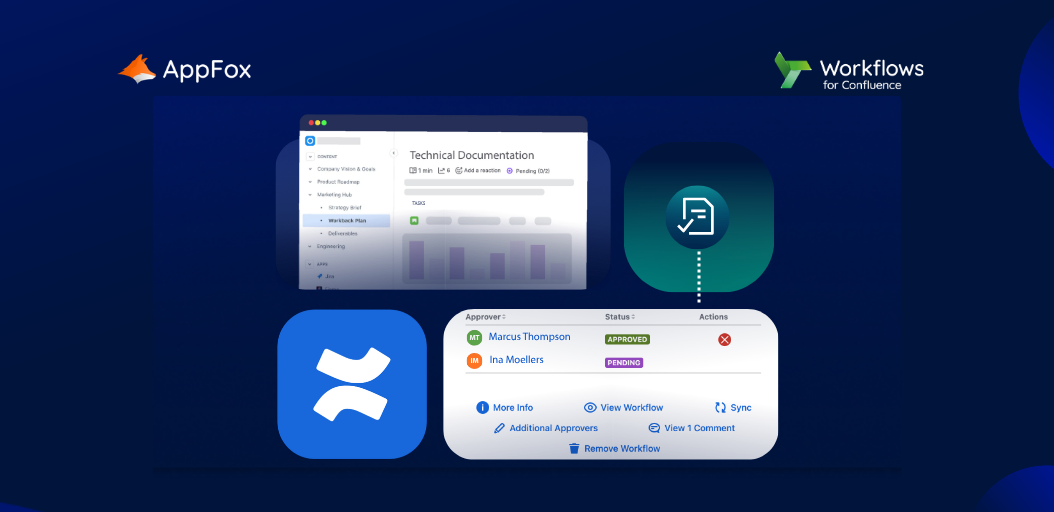
Need an SOP to be reviewed by key stakeholders? Assign reviewers and approval steps, and sit back as the content automatically flows through the approval chain, with automated notifications and actions.
Technical documentation reaching its review or expiring date? Automatically alert team members to review the document for accuracy and relevance, and then either republish once approved, or archive.
Workflows for Confluence can make your technical document management look easy – and there’s so much it can do. Find out for yourself with a free trial!
Benefits of Technical Documentation in Confluence
Single source of truth
When documentation is scattered across Google Docs, Notion, email threads, and local files, your teammates are going to have questions ranging from ‘Where do I find this?’ to, ‘Which version is actually current?’
Confluence solves this with version history, change logs and cleat page hierarchies and structures.
Clear page hierarchy and organisation
Yep, let’s dig into that page hierarchy a little more.
Confluence’s space and page structure maps naturally to how technical teams think about their work: by product, by service, by team. A well-maintained space gives a new engineer everything they need to understand a system without asking anyone.
Version history and audit trail
Every edit is logged on Confluence, for visbiility and confidence. You can compare any two versions of a page, restore a previous version, and see who changed what and when. For teams working in regulated environments, this matters significantly.
Real-time collaboration
Documentation rarely comes from one person. Confluence lets engineers, product managers, and QA collaborate on the same page simultaneously. Alongside this, inline comments flag questions and suggestions without breaking the flow of the document.
Integration with the rest of your toolchain
Confluence connects natively with Jira, Bitbucket, GitHub… the list goes on. This means you can embed a live Jira board in a runbook, link an ADR to the Jira epic it informed, pull release notes directly from a deployment pipeline – and more,
Confluence Technical Documentation Examples
The table below covers the most common types of technical documentation teams create in Confluence, what each document tends to contain, and who typically owns it.
And here’s what each looks like in practice:
API Documentation
API docs in Confluence typically combine a high-level overview (authentication, base URL, rate limits) with individual endpoint pages structured consistently across methods.
Runbooks and SOPs
Runbooks document what to do when something goes wrong, or needs doing repeatedly. Good runbooks in Confluence include the trigger condition, step-by-step instructions, expected outcomes, and escalation paths.
Architecture Documentation
Architecture documentation captures how systems are designed and why. Architecture Decision Records (ADRs) are particularly well-suited to Confluence: each decision gets its own page, with context, the options considered, and the rationale for the choice made.
Product and User Guides
Internal product documentation, such as feature guides, release notes or onboarding walkthroughs, is one of the highest-value uses of Confluence. Making these available internally on a centralized platform reduces support load, speeds up onboarding, and gives customer-facing teams accurate, up-to-date information about what the product actually does.
How to Create Technical Documentation in Confluence
1. Set up a dedicated space
Create a Confluence space for the product, team, or system you’re documenting. Give it a clear name, a short description, and a homepage that explains what the space covers and who it’s for.
Tip!
Resist the urge to put everything in one space. Separating your documentation out makes navigation and permissions management significantly easier.
2. Structure pages logically
Plan your page hierarchy before you start writing. A common pattern for technical documentation could look like this:
- Overview page: What the system/product does, who owns it, key contacts
- Getting started: Setup, prerequisites, quickstart
- Core concepts: Definitions, architecture, key terminology
- How-to guides: Task-specific walkthroughs
- References: API docs, configuration options, error codes
- Changelog / Release notes: Versioned history of changes or updates
Keep page titles descriptive (but simple!) and consistent.
3. Create and format content
You can use Confluence’s built-in editor for most documentation. Key formatting practices include:
- Use headings (H2, H3) to create scannable structure. Let’s be hones – most readers will skim before they read in depth.
- Use the Code block macro for any code samples, commands, or configuration snippets.
- Use the Info, Warning, and Note panels to highlight important details without burying them in dense text.
- Use tables for comparison content, configuration options, and structured reference data.
- Embed Jira issues, Figma files, and other live content rather than copying static screenshots.
4. Use templates
Confluence templates enforce consistency across documentation written by different people at different times.
We’d recommend that you create templates for each recurring document type, such as runbook, ADR, API endpoint page, release note, and so on. Then set them as the default for relevant spaces, so users can easily replicate in future.
5. Review and publish
Before publishing, check:
- Is the audience clear?
- Are prerequisites stated?
- Is the information accurate?
- Is there an owner named on the page?
- Set a review date. Documentation without one tends to go stale without anyone noticing.
Is your content approved?
Remember, if you need a quick and easy way to gain approval for your technical documentation, use the Workflows for Confluence app.
This protects your docs from being published before they’ve been reviewed – and makes sure only approved content reaches your teams!
Scaling documentation with Workflows for Confluence
Now, as teams and documentation volumes grow, three problems tend to emerge:
- No approval process. Anyone can publish anything. There’s no formal sign-off before documentation goes live. Yep, scary.
- Outdated content. Pages are created and forgotten. No review cycle means stale docs persist indefinitely.
- Unclear ownership. Nobody knows who’s responsible for keeping a document current.
We we’ve mentioned already, the Workflows for Confluence app adds a structured document lifecycle directly inside Confluence, so you can handle content approvals, publishing and expiry with ease.
What could you documentation lifecycle look like with Workflows for Confluence
Each stage is enforced: A page can’t move to Approved without sign-off, and can’t move to Published without Approval. You can also automate review cycles. Simply set a review interval on any document and the system notifies the owner when it’s due.
For teams preparing for compliance certification (ISO 9001, SOC 2, ISO 13485), this matters beyond operational tidiness.
Auditors expect documented evidence that documents were reviewed, approved, and kept current. Workflows for Confluence generates that evidence automatically as part of normal working practice.
Frequently Asked Questions
Can Confluence be used for external-facing technical documentation?
Yes, Confluence can support your external knowledge base/
How do you keep Confluence documentation up to date?
The most reliable approach is to assign an owner to every document and set a review date. Without both, documentation drifts. You can’t achieve this using native Confluence functionality alone, but the Workflows for Confluence enables it. Review reminders are triggered automatically, and pages that haven’t been reviewed by their due date are flagged.
What’s the difference between a Confluence space and a page?
A space is the top-level container, typically representing a team, product, or project. A page is a document within that space. Pages can be nested to create hierarchies (parent pages and child pages). Most documentation structures involve a small number of well-organized spaces, each containing many pages.
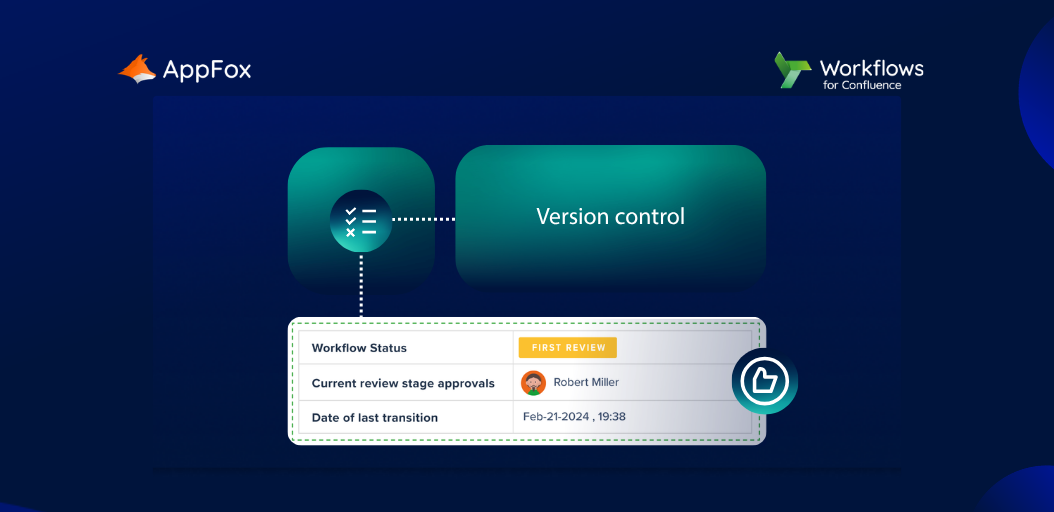
Does Confluence support version control for documentation?
Confluence maintains a full edit history for every page — you can view, compare, and restore any previous version. It does not support semantic versioning (v1.0, v2.0) natively. For teams that need formal version numbering, this is typically handled through page naming conventions or add-ons.
How does Confluence compare to Notion for technical documentation?
Confluence is generally better suited to engineering and technical teams: it has deeper Jira integration, more robust permissions management, better support for large-scale documentation, and a richer ecosystem of technical add-ons. Notion is more flexible and accessible for non-technical teams. For organisations already in the Atlassian ecosystem, Confluence is the natural choice.
Can Confluence be used for external-facing technical documentation?
Yes, Confluence can support your external knowledge base/
How do you keep Confluence documentation up to date?
The most reliable approach is to assign an owner to every document and set a review date. Without both, documentation drifts. You can’t achieve this using native Confluence functionality alone, but the Workflows for Confluence enables it. Review reminders are triggered automatically, and pages that haven’t been reviewed by their due date are flagged.
What’s the difference between a Confluence space and a page?
A space is the top-level container, typically representing a team, product, or project. A page is a document within that space. Pages can be nested to create hierarchies (parent pages and child pages). Most documentation structures involve a small number of well-organized spaces, each containing many pages.
Does Confluence support version control for documentation?
Confluence maintains a full edit history for every page — you can view, compare, and restore any previous version. It does not support semantic versioning (v1.0, v2.0) natively. For teams that need formal version numbering, this is typically handled through page naming conventions or add-ons.
How does Confluence compare to Notion for technical documentation?
Confluence is generally better suited to engineering and technical teams: it has deeper Jira integration, more robust permissions management, better support for large-scale documentation, and a richer ecosystem of technical add-ons. Notion is more flexible and accessible for non-technical teams. For organisations already in the Atlassian ecosystem, Confluence is the natural choice.
Technical documentation in Confluence: What’s next for your teams?
Hopefully this ultimate guide to technical documentation in Confluence has been useful – but if you still want more, why not take a look at some of our other resources?
- How do I use Confluence to Review and Approve my Content?
- The Ultimate Guide to Document Management in Confluence
- How to Classify Your Confluence Content with AI
- 5 Reasons to Use Confluence for Document Management
- How to Publish Across Confluence Spaces (And Why You Should!)
And remember, if you want to benefit from automated approvals, publishing, archiving and more for your technical documentation, why not give the Workflows for Confluence app a go? Get your 30-day free trial on the Atlassian Marketplace today!