




Confluence is championed as a collaborative workspace – a place to draft plans, share ideas, refine content and publish documents.
With the right tooling, you can also use Confluence to review and approve all your content, across all your business areas.
So, today we’re going to help you understand how to request approval on a Confluence doc, add approvers, and automate your Confluence review and approval steps.
- How to request an approval for a Confluence page
- How to approve Confluence content
- How to request a section approval for a Confluence page
- How to approve a Confluence section
- How can I see all my Confluence review and approve statuses?
First up, you’ll need an app!
You can manually request feedback or approval from team members by using comments in Confluence, or by using page labels to classify documents as ‘DRAFT’ or ‘APPROVED’, for example.
But for the kind of Confluence ‘Review and Approve’ workflows we’re talking about today, you’ll need a third-party app like Approvals for Confluence.
It’s made by our team here at AppFox, and is a great way to get started with automated content approvals in Confluence.
You can also try it for free!
1. How to request an approval on Confluence doc
We’re going to start with a simple single-stage approval here.
Once you’ve installed the Approvals for Confluence app, you can add an approval to any Confluence page or section. We’ll focus on pages for this example.
Navigate to the ‘Add Approval’ icon in your Confluence page byline, click on it, and a dialog box will open up.
From here, you can do the following:
- Edit notification settings
- Edit expiry settings
- Select your approvers. This could be one person, several people, or an entire team.
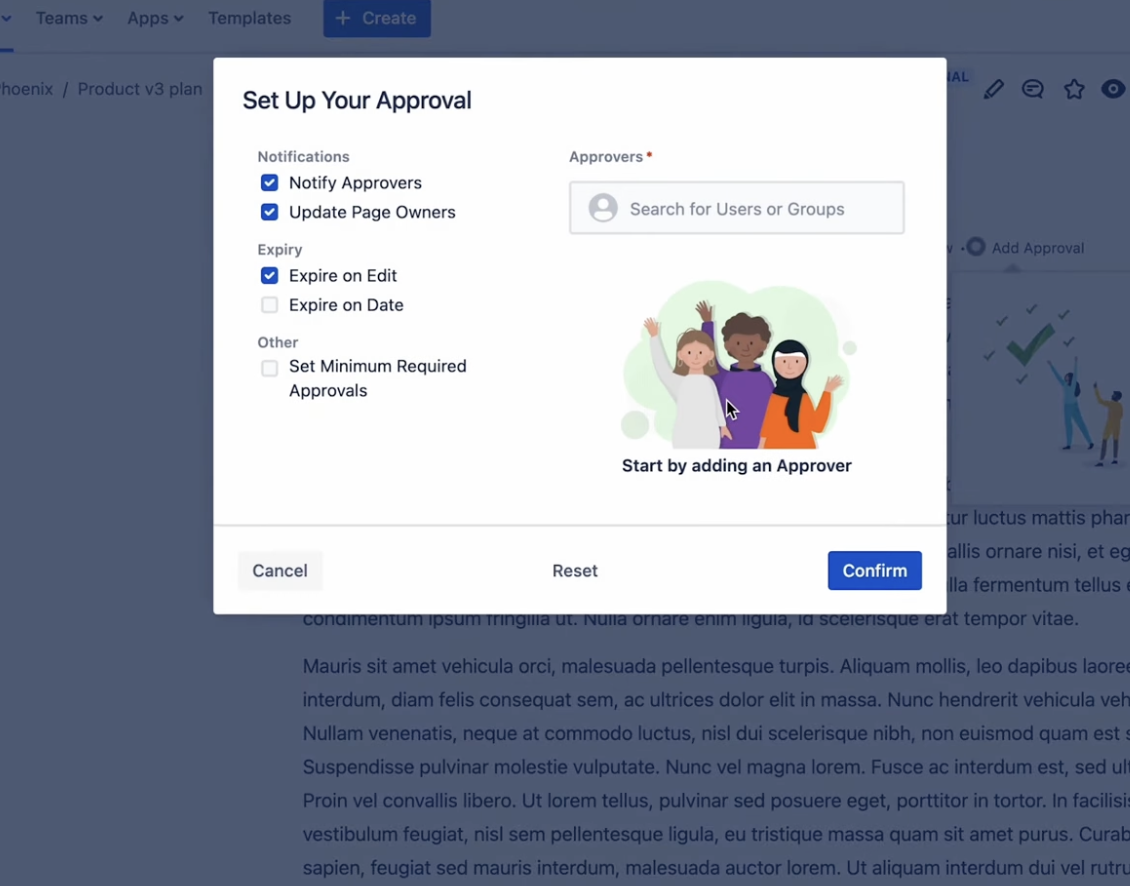
Press ‘Confirm’ and your approver(s) will receive an email notification that they have a Confluence page to review.
So, that’s how you add an approval to your Confluence page. Shall we look at what happens next?
2. How do I review and approve a Confluence page?
Let’s look at how an approver would review a Confluence page.
- You’re working away and you receive a notification.
- You’ve got a new page in Confluence to approve! Luckily, it’s a super straightforward process.
- Click on the link in your approval notification email, and you’ll be taken to the Confluence page in question.
- Once you’ve reviewed the page and are ready to make your approval decision, scroll back up to the byline and hit the ‘Pending’ icon.
- Doing this will open up another dialog box, where you’ll see the option to either ‘Approve’ (happy green tick) or ‘Reject’ (big red cross) the content.
- Upon clicking ‘Approve’ or ‘Reject’, you’ll then be taken to the Comments section, where you can add feedback if necessary.
That’s it – your job as Confluence content reviewer and approver is done!
3. How do I request a section approval to my Confluence page?
Let’s say you’ve written a project plan that requires approval from both your Sales and your Marketing team, in different sections. Rather than making both approvers review the entire document, you can use the Section Approvals macro to request one approval for the Sales-related section, and another for the section that pertains to Marketing.
Head to the section for which you want an approval and add the Approvals for Confluence ‘Section Approval’ macro (you can do this by typing a forward slash on the page). Again, a dialog box will appear, where you can:
- Name your section approval
- Choose your approver(s)
- Configure expiry settings
- Edit notification settings
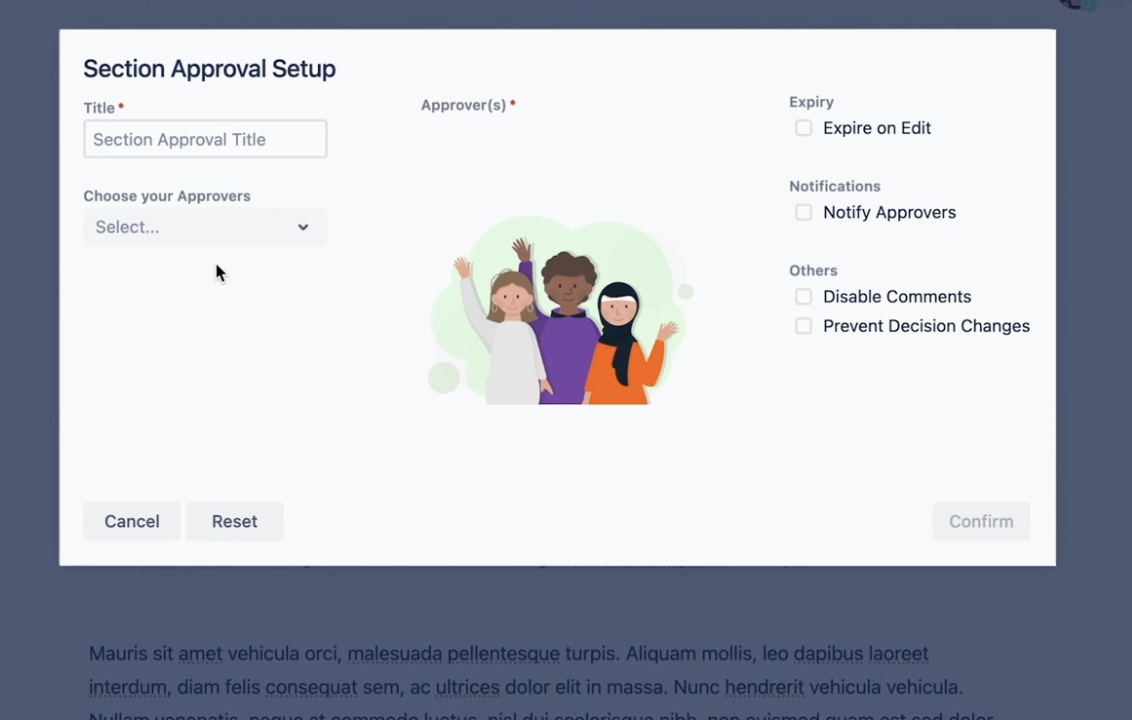
Once you hit ‘Confirm’, and publish your page, your approver(s) will receive a notification. Done and dusted.
4. How do I do a section approval?
If you’re a section approver, it’s very simple – just like a normal page approval.
Follow the link from the email notification and you’ll be taken to the section that you need to review. As with a page approval, you can hit the Confluence ‘Approve’ button or ‘Reject’ button.
5. How to view all your Confluence approval and review workflows
Approvals Search is the answer.
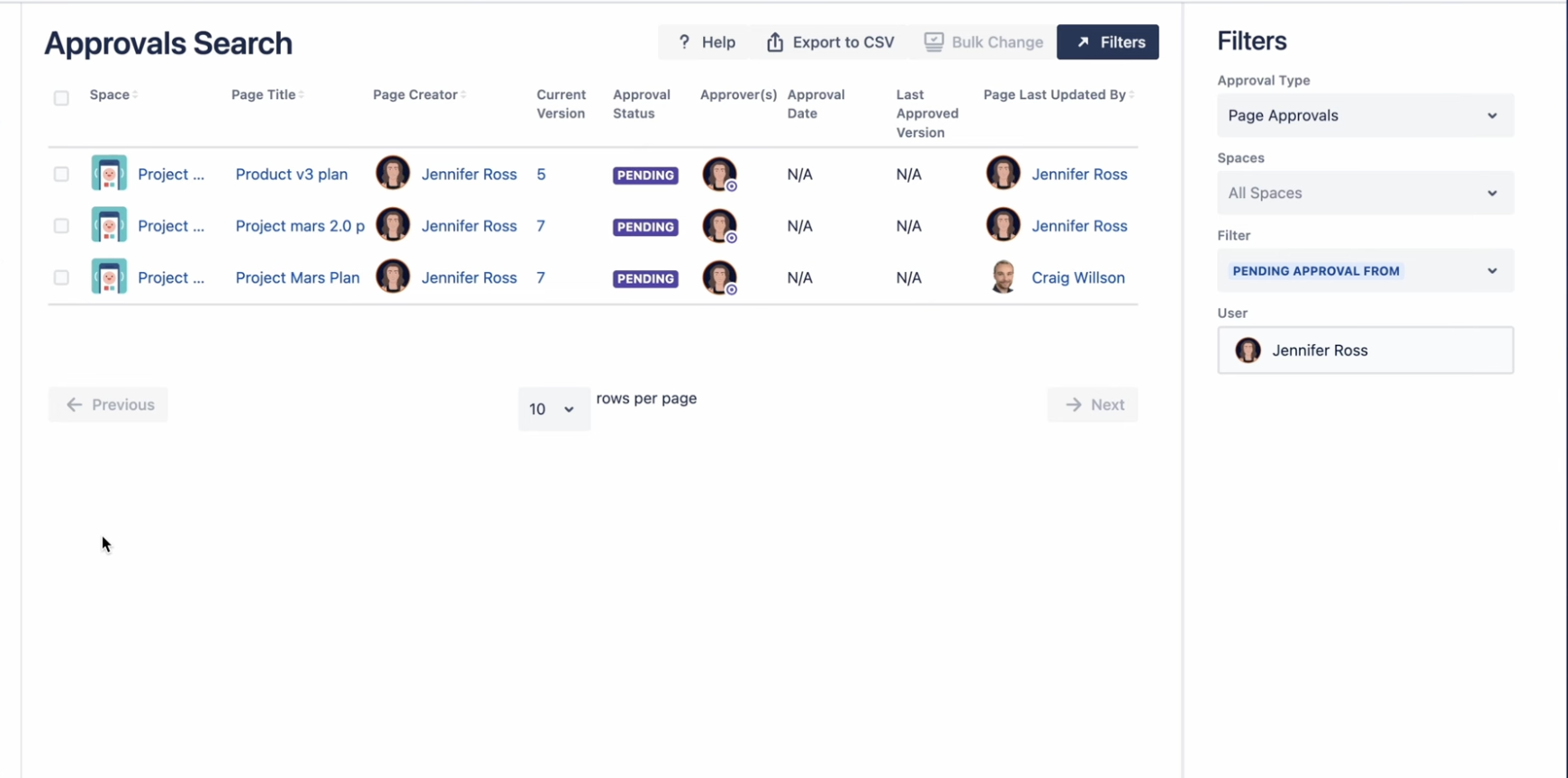
Navigate over to ‘Approvals Search’ under ‘Apps’ in the left-hand Confluence menu. You’ll then see a whole list your approval workflows, including the status of each page or section (‘Pending’, ‘Approved’, ‘Rejected’).
If you have lots of pages, you can search using the different filters, such as searching by approver or Confluence space.
Are you ready to start Confluence review and approvals?
The Approvals for Confluence app makes it so quick and easy to request page and section approvals – both for you, and for your approvers!
Head over to the Atlassian Marketplace now to try the app for free!