




In our recent webinar with fellow Atlassian Marketplace app vendor, Communardo, we took a deep dive into how to implement consistent and controlled processes for automated document management in Confluence.
Teams across all business areas need to access data within Confluence quickly and easily – and to be confident the documents they find are the latest versions, and approved for use.
To make this happen, you need carefully managed and maintained processes. But how can you achieve this without huge admin overheads or manual tasks? That’s exactly what we explored in our webinar.
You can catch up with the on-demand recording here, or read on for our four key take aways from the session.
Why does smarter process management in Confluence matter?
Well, the challenges that teams are facing around process management and compliance in Confluence are pretty significant. We asked our webinar attendees for some insights.
A huge 89% of respondents agreed that it took time to find the policies they needed in their Confluence. That’s time that busy teams don’t have – and shouldn’t be spending trying to find critical documentation.
We then asked what users’ biggest challenges were. 50% went for a lack of consistent structure across processes, swiftly followed by no formal review or approval process at 38% of respondents.
Luckily, these are the kind of challenges that our team here at AppFox, and our friends over at Communardo, know just how to solve.
Spotlight on the apps!
There are two Atlassian Marketplace apps underpinning the process management best practice we discuss in the webinar.
The first is Metadata for Confluence, from Communardo, which brings structure and standardisation to your documentation through adding consistent metadata to your pages, These fields can all be customized and can take the form of drop-down menus or radio buttons for even greater standardisation. Common use cases for the Metadata for Confluence app include creating project, product and process documentation (the latter is the focus of our joint webinar).
The second is Workflows for Confluence, created by us (AppFox)! The Workflows for Confluence app enables clear ownership, automated workflows and consistent processes for document management. You can build workflows to handle content review and approvals, page expiry dates, and document publishing.
Both apps now integrate, so you can use Metadata values to trigger or define your workflow steps. Doing this strengthens your process management in Confluence with more granular data, deeper insights, and tighter control.
Let’s look at what that means in practice.
1. Metadata matters
How much thought do you really give your native page properties in Confluence? You might notice the last time the page was updated, or who the author is – but we’re betting most teams don’t go any deeper.
Unless they have the Metadata for Confluence app, that is. As this is when those fields like ‘page owner’ or ‘last updated’ can become really valuable.
Native Confluence page properties vs Communardo’s Metadata fields
Natively in Confluence, you can see the author of a page, an estimated read time, who else has viewed it, and when it was last updated. This can be useful as a general guide to the page’s recency, or ownership, but doesn’t enable a whole heap of actions or process around it.
Metadata for Confluence allows you to customize page properties. You can categorize pages by project, customer, or status, for example. When users create a new page, you can mandate that certain metadata is completed, ensuring all pages align with your categorization and standards.
This level of consistency can then power more effective document management processes.
2. Workflows can make your life so much easier
We all know those teams with thousands (and thousands) of Confluence pages. How do you keep on top of where each one is in the document management cycle? Which key stakeholders have had eyes on this one? And is this policy the latest version?
With the Workflows for Confluence app, you can build processes that lay all of these answers to rest – and take care of future pages for you. We call it a ‘set-it-and-forget-it’ ecosystem.
How does it work?
Workflows for Confluence features a simple drag ‘n’ drop workflow builder, so you can create your processes pretty easily and simply. Examples might including building a simple single-stage approval process, automatically publishing approved content in a different space, or triggering page archiving upon expiry date.
The joy of automated workflow-powered processes is that you can sit back and relax, knowing your Confluence content is seamlessly running through a workflow – and your teammates can always be confident in the validity or compliance of documentation. If you ever have a question over the status of a page, you can search for it and instantly identify which workflows it is (or has been) running through, and at which stage.
Watch Metadata for Confluence and Workflows for Confluence in action. View the webinar recording in full, on demand, today!
3. Combining Metadata + Workflows = truly controlled process management
When you integrate Workflows for Confluence with the Metadata for Confluence app, you can add a new layer of granularity to your document management processes.
Dynamic workflows based on Metadata values
For example, you could use a custom metadata value to trigger workflow steps. In the webinar, we demonstrated how you could use the Metadata and Workflows for Confluence apps to enable dynamic approvals based on the process owner metadata field. When this value is pulled through into a workflow, different approvers will be triggered depending on who the process owner is on each page.
4. Create a ‘process overview page’
Another way to keep a handle on your process management in Confluence is to create a page and use it as an overview for all your processes. Once you’ve created the page, you could add the Metadata for Confluence macro Report Metadata.
This enables you see the list of process pages that you have in Confluence and all associated metadata, such as description, normative reference, process owner, process type, and so on. Here at AppFox, we are always championing Confluence’s role as a single source of truth – and here it enables a valuable centralized view of all your processes.
What’s the benefit of smarter, more sustainable Confluence process management?
Let’s finish up with a quick list of the benefits of better managed processes in Confluence. Why does it matter so much
- Consistent structure across all process pages: Remember that pain point 50% of our respondents raised earlier? Last of consistent structure in Confluence is a real challenge for busy teams. Getting a handle on your processes with the Metadata and Workflows for Confluence apps can really help with this.
- Enforced ownership and accountability: Which is a valuable outcome not only for Confluence processes, but also for organization-wide compliance efforts. Everyone needs to be aware of their role in process management and beyond.
- Automated approvals instead of email chasing: We promised at the top of this blog post that our solution wouldn’t involve heavy admin or manual tasks, didn’t we!
- Central overview of all processes: Centalized process management is key to enhancing visibility across teams – and creating that process overview page in Confluence can support with this.
- Reusable workflows across departments: Save time and effort for your teammates – and rest easy knowing that your content is flowing through proven, powerful workflows.
There isn’t a foolproof secret to perfect process management in Confluence…
…but if you have the right combination of tools, you can embed smart and robust process management, which in turn can support your data protection, compliance and auditing efforts.
If you haven’t already, do check out Metadata for Confluence from the good folks at Communardo, or give Workflows for Confluence a free trial.
You can watch it on-demand right here, to catch up on all the best practice and guidance around strengthening your Confluence processes.
We’re a UK-based Gold Atlassian Marketplace Partner, and the creators of the Workflows for Confluence app (among others). We create apps to enhance and extend the functionality of leading tools like Atlassian’s Confluence and Jira, Miro and monday.com. For Confluence and Jira solutions, you can find us on the Atlassian Marketplace.
Communardo are a fellow Atlassian Marketplace vendor and Platinum Partner. HQ’d in Germany, creates a range of apps across the Atlassian ecosystem. You can find them on the Atlassian Marketplace here.
We’ve included it here for you, for full accessibility.
Transcript
Yuze Li:
Hello everyone, and thank you for joining today’s webinar.
Before we begin, we asked a few quick questions to understand who’s in the audience. We have participants joining from Germany, England, Portugal, Switzerland, and Toronto, so it’s great to see such an international group.
We also asked about your experience with Confluence. Some of you have more than five years of experience, and others are newer to the platform. Whether you’re new or experienced, we hope today’s session will give you something useful.
We asked about your biggest challenges with process management in Confluence. The most common responses were:
- No consistent structure across processes
- No enforced review or approval
- Difficulty identifying the latest version
These are exactly the challenges we’ll address today.
We’ll be working with two apps:
- Metadata for Confluence
- Workflows for Confluence
Metadata helps structure and standardize documentation and ensures key information is captured consistently. It also gives administrators the right level of governance.
Workflows provides clear page ownership, lifecycle control, and custom approval processes.
Together, the two apps integrate to automate approvals. For example, metadata fields such as “Process Owner” can automatically define who the approver should be in a workflow, reducing manual follow-up.
To demonstrate this, I’m joined by Juela from Communardo and Belinda from AppFox.
Juela, over to you.
Juela Zeneli:
Thank you, Yuze. Hi everyone, I’m Juela, Product Manager for Metadata at Communardo. I’ll walk you through a process management use case.
Metadata allows you to classify and structure content in Confluence. It can be used for many use cases, such as project or product documentation, but today we’ll focus on process documentation.
Recently, we introduced an integration with Workflows for Confluence from AppFox. If you’re using both apps, you can define metadata fields — for example, “Process Owner” — and use those values directly in your workflow approvals. This reduces manual work and increases automation.
Let me start from the admin perspective.
First, an administrator creates a Content Category. A Content Category combines:
- A Confluence page template
- A defined set of metadata fields
For example, we can create a category called “Process Description.”
When setting it up, you can either create a new template or select an existing Confluence template. After selecting the template, you define the metadata fields relevant to your process documentation.
Typical fields might include:
- Process Owner (single user field)
- Normative References (multi-select field)
- Process Type
- Relevant Role
- Process Location
- Process Team
You can mark certain fields as required. For example, if “Process Owner” is required, users will not be able to publish the page without completing it.
Within the template, you can use metadata macros to display values inside the page. For example:
- A macro that displays a specific metadata field within the content
- A macro that displays an overview of all metadata associated with the page
Now switching to the user perspective.
When a user creates a new page using the process template, a metadata dialog automatically appears. The user fills in the required fields before saving.
If a required field is missing, the page cannot be published.
Once created, the metadata values can be displayed directly within the page content. You can also include a section that shows all metadata fields in a structured overview.
It’s also possible to create sub-processes using connected templates, with their own metadata definitions.
That covers the metadata side. I’ll now hand over to Belinda to demonstrate workflows.
Belinda Polychronakis:
Hi everyone, I’m Belinda, Product Owner for Workflows for Confluence at AppFox.
Workflows for Confluence is a document lifecycle management tool that allows you to build custom workflows using our workflow builder.
To create or edit workflows, you need to be either a space admin or a global admin.
For today’s example, we’ll use a simple workflow:
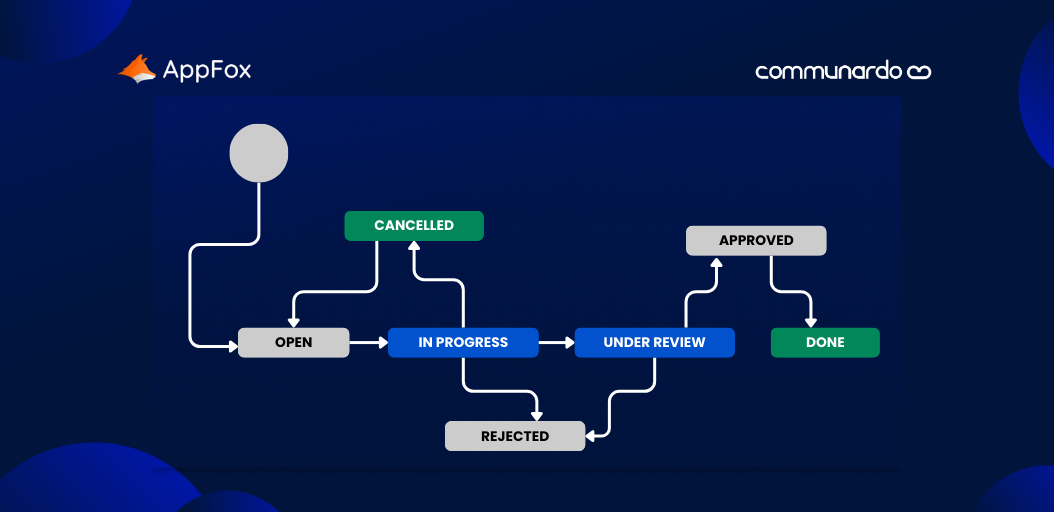
Draft → Approval → Approved or Rejected
Inside the workflow builder, you configure each stage. In the approval stage, if you also have Metadata for Confluence installed, you can pull in metadata values.
For example, you can configure the workflow so that the “Process Owner” metadata field automatically defines the approver.
To do this, you retrieve the metadata field ID, as described in our documentation, and reference it inside the workflow configuration.
Once set up, when the workflow is applied to a page, the approver is dynamically assigned based on that page’s metadata.
This means:
- The same workflow can be reused across many pages
- Different approvers are automatically assigned depending on the page
- No manual reassignment is required
If the page transitions to “Approved,” the workflow moves to its completed state.
Regarding page edits: whether a new edit affects the workflow depends on how the workflow is configured.
You can enable options such as:
- Transition on page edit (for example, returning to the approval stage if the page is changed)
- Expiration after a set period (for example, triggering re-approval every six months)
If these options are not enabled, editing the page does not change its workflow status.
Juela Zeneli:
As a final step, you can create an overview page for all processes.
Using the “Report Metadata” macro, you can display a list of all process pages along with their associated metadata, such as description, normative reference, process owner, and process type.
You can also apply filters dynamically. For example, you can filter to show only processes owned by a specific person.
This provides a structured, searchable overview of all documented processes in Confluence.
Yuze Li:
Thank you both for the demonstration.
We’ll share the recording and follow-up resources after the webinar. If you’re interested in booking a one-to-one demo with Juela or Belinda, we’ll also share the relevant links.
Thank you everyone for joining us today.