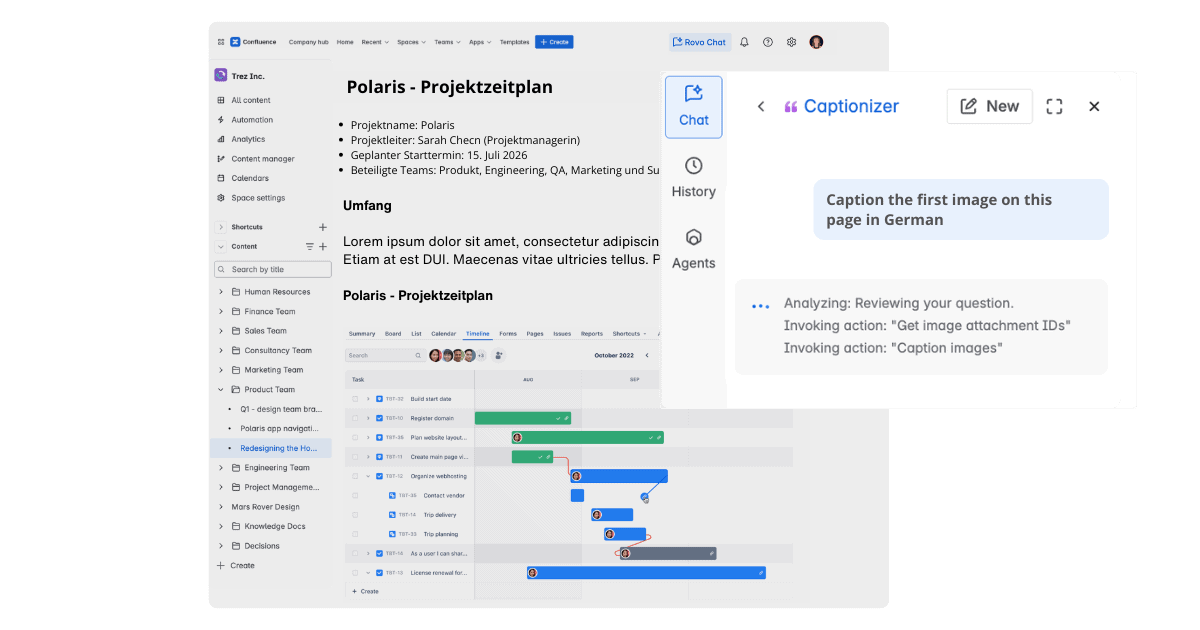
Captionizer for Confluence
From technical diagrams and screenshots to illustrations, make the visual information in your Confluence pages easier to understand.
Captionizer is a free, Rovo-powered image captioning app that generates contextual descriptions for your images. Review and refine the suggestions, then add them to your pages without writing every caption yourself.
Free for Confluence Cloud. Requires Atlassian Rovo to be enabled.
Images, screenshots and diagrams can explain something much faster than words alone. But without captions, readers may miss important details or struggle to understand how a visual relates to the content around it.
Captionizer uses AI to help you add meaningful descriptions to your Confluence images, making documentation clearer without adding unnecessary work for authors.
A screenshot may demonstrate a process, while a diagram might explain a complex system. A useful caption helps readers understand what matters.
Captionizer analyzes images and the surrounding page content to suggest descriptions that reflect their context.
Give readers a clearer explanation of the visuals in your documentation, without needing to describe every image from scratch.
Creating captions manually can become repetitive, particularly when a Confluence page contains several screenshots, diagrams or illustrations.
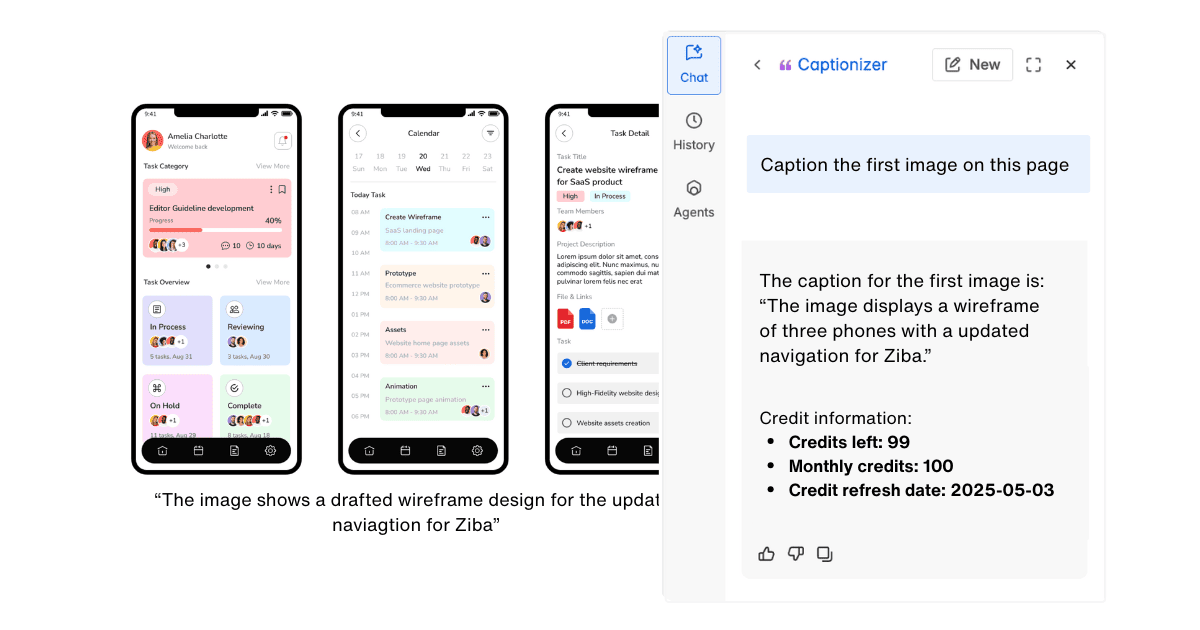
With Captionizer, you can use Atlassian Rovo Chat to request captions for individual images or several images on the page.
Let AI handle the first draft, so you can spend more time developing the content itself.
AI-generated captions are a starting point. You may want to add technical details, adjust the wording or make an explanation more relevant to your readers.
Review Captionizer’s suggestions and use Rovo Chat to request changes before adding them to your Confluence page.
Keep control of the final wording while reducing the effort needed to produce useful, consistent captions.
Imagine you’re creating a technical guide with several screenshots and a diagram explaining how a system works.
The images are important, but you don’t want readers to have to interpret them without additional context. Writing and formatting each caption manually would take time.
Here’s how Captionizer can help.
Open your Confluence page, launch Rovo Chat and select the Captionizer agent.
Tell Captionizer which images you’d like to caption. You can request an individual image or several images on the current page.
Captionizer analyzes the selected images and suggests descriptions based on their content.
Review the proposed text and ask for changes where additional information or a different explanation would be useful.
Once you’re happy with the suggestions, use Captionizer to add the captions directly to the images in your Confluence page.
Your documentation now includes written context alongside the visuals, helping readers understand what the images are there to communicate.
The outcome
Clearer visual documentation, with less manual caption writing and more control over the final result.
A good caption does more than describe what’s visible. It helps readers understand why an image matters to the information they’re reading.
See how Captionizer turns a visual in Confluence into a captioned image with additional context.
Before
An image on a Confluence page, with no written context for the reader
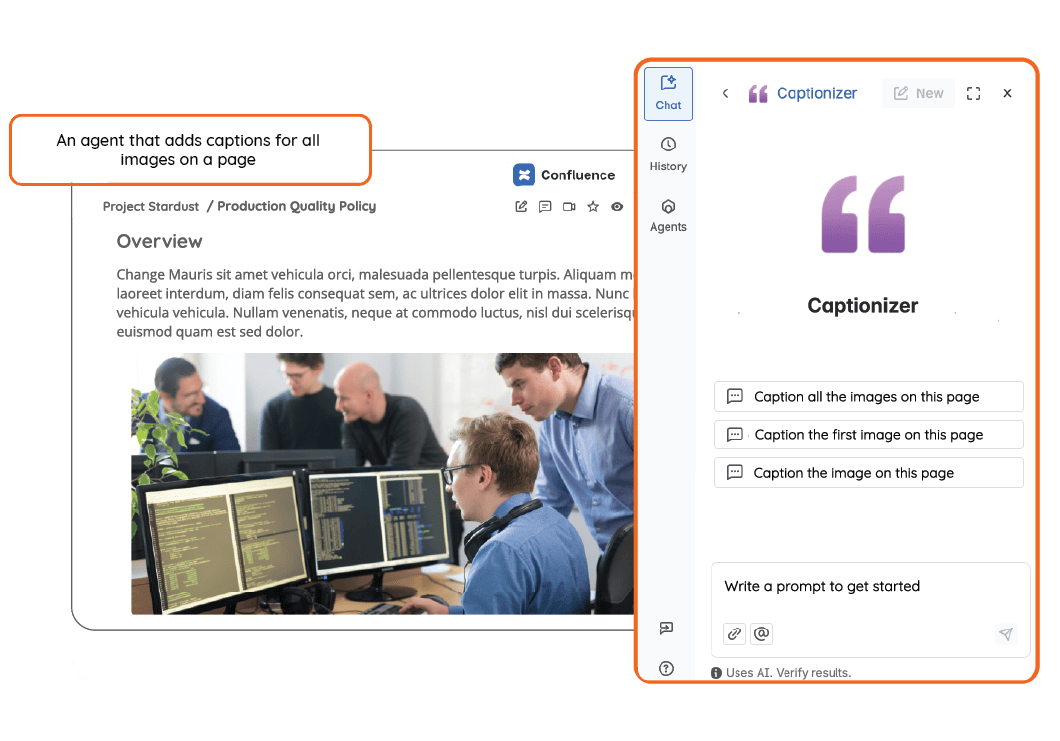
After
The same image with a Captionizer caption explaining what it shows
Review AI-generated captions to make sure they accurately reflect your content and provide the right level of detail for your readers.
Clearer visuals are one part of creating useful Confluence documentation. Your wider requirements might involve managing the document lifecycle, introducing AI into everyday work or making content reviews more consistent.
Explore how AppFox helps teams address those connected challenges.
Keep important documentation accurate and up to date
Captions help make individual pages easier to understand. But keeping a growing collection of documentation reliable also means managing reviews, approvals, publishing and ongoing maintenance. Explore how AppFox helps teams manage the wider document lifecycle across the tools they use.
Manage the document lifecycle →Prepare your Atlassian environment for wider AI adoption
Captionizer is one practical way to use Atlassian Rovo in Confluence. As your organization introduces AI into more workflows, the quality of your content, Jira configurations and information controls becomes increasingly important. Explore how AppFox helps teams prepare their Atlassian environment for broader AI adoption.
Prepare for AI adoption →Make document quality part of a consistent review process
Clear explanations make documentation more useful, but important content may also need structured reviews and approvals before it’s ready to share. Explore how AppFox helps teams establish consistent review responsibilities, manage sign-offs and maintain records of decisions across their work.
Strengthen QA processes →Planning a wider Confluence initiative? Discuss your requirements with AppFox.
Yes. Captionizer is free to install and use through the Atlassian Marketplace.
Each user receives an allowance of 100 captions per month, managed through a credit system. Your credits refresh monthly, based on when you first started using Captionizer.
You can ask the Captionizer agent how many credits you have remaining.
Yes. Captionizer is built as an Atlassian Rovo agent and works through Rovo Chat in Confluence Cloud.
You’ll need access to Rovo in your Confluence environment to generate captions. Installing Captionizer without Rovo access won’t make the agent usable.
Once it’s installed and Rovo is available, you can select Captionizer from the Rovo agents in Confluence.
Yes. Captionizer can generate captions for individual images or multiple images on a Confluence page.
For best results, AppFox currently recommends requesting captions for up to six images at a time.
You can use prompts such as “Caption the first and third image on this page” to select specific images.
Yes. Captionizer generates suggested captions that you can review and refine.
You can ask the agent to adjust a description, include more detail or change its wording before applying the caption to your page.
Because captions are AI-generated, it’s important to check that they accurately represent the image and its meaning.
Captionizer helps authors add descriptive captions to visual content, which can improve comprehension and support better content accessibility practices.
However, image captions and alternative text serve different purposes. Adding captions alone doesn’t guarantee that a page meets WCAG accessibility requirements.
Authors should continue to provide appropriate alternative text where needed, review AI-generated descriptions and follow their organization’s accessibility standards.
You need access to Captionizer through Rovo and the appropriate Confluence permissions.
Captionizer can only update image captions on pages you have permission to edit.
Your Confluence administrator will also need the appropriate permissions to install the app.
Give screenshots, diagrams and illustrations the context they deserve, without writing every caption by hand.
Get Captionizer free on the Atlassian Marketplace and start creating captions with Rovo.
Requires Atlassian Rovo to be enabled in Confluence Cloud.