





Atlassian’s Confluence has native page version controls.
So, every time you save a page, Confluence automatically creates a new version and stores the history. You can view previous versions, compare changes, and restore an older version if something goes wrong. It’s genuinely useful, and it’s there right out of the box.
But here’s the thing: Confluence’s built-in versioning is really about page history, not document lifecycle management.
If your team needs to track whether a document is a draft, in review, officially approved, or superseded – and, crucially, who signed off on what and when – then native versioning alone leaves some significant gaps.
That’s where tools like the Workflows for Confluence app come in. (And we’ll talk more about this later.)
For now, we’re going to dig into exactly what Confluence version control gives you, where the limitations show up in practice, and how to build a proper versioning process on top of it.
Spotlight on Workflows for Confluence
Okay, okay – we know we said we’d talk about our Workflows for Confluence app later. But we’re doing it now. It is useful context, after all…
Workflows for Confluence enables your teams to:
- Review and approve cross-team content, centrally and securely
- Publish and share organizational documents, from HR policies to Marketing plans
- Manage different kinds of content review processes, from complex multi-stakeholder approval chains, to single-stage approvals
- Record all version changes and decisions in a comprehensive audit log
With the Workflows for Confluence Marketplace app, you can use Confluence as a powerful document control system – with automated workflows, bespoke approvals and robust audit trails.
Available now on the Atlassian Marketplace to try for free!
Does Confluence have version control?
Yes. Confluence Cloud and Data Center both include automatic page versioning. Every time a page is saved, a new version is recorded. The page history gives you:
- A full list of saved versions, with timestamps and the name of the person who made the change
- The ability to compare versions side-by-side, highlighting added and removed content
- One-click restore, letting you roll back to any previous version of the page
To access this, just open a page, click the three-dot menu (…), and select Page History.
It’s straightforward and reliable. But there are limitations.
What doesn’t Confluence version control do?
This is where it gets interesting. Confluence’s page history is a technical record, in that it tells you what changed and when. However, it doesn’t tell you anything about the status of a document within your organization.
Think about what an end-to-end document versioning process usually needs to track:
- Is this the current official version? Or is it a draft that hasn’t been approved yet?
- Who approved it? And when? And did they actually review the right version?
- Is there a newer version in progress? If so, should the current one be locked from edits?
- What version number is this? V1.0, V2.3, a minor revision?
- Has this version been superseded? Should it be archived?
None of that is captured by Confluence’s native page history.
It’s not a criticism (you know we’re Confluence super-fans). It’s just not what the feature was designed for. Page history is a great basic safety net. But for stronger compliance measures, you need to step it up with a structured versioning workflow.
And, for that, you might need the help of an Atlassian Marketplace app.
Version controls with the Workflows for Confluence app
Go beyond native Confluence page versioning and strengthen compliance with the Workflows app:
- Independent version tracking
- Major and minor version numbers
- Version descriptions
- Draft and approved states
- Version ownership
- Version history page
- Create on behalf of others
- Mandatory version descriptions
Try all of these features and more today. Download your free trial of Workflows for Confluence!
Okay, so where does native Confluence versioning fall short?
Here are the scenarios where teams consistently run into trouble by relying on page history alone:
No formal approval process. Anyone with edit access can change a page and the new version is immediately live. There’s no gate, no mandatory reviewer, no sign-off step.
No official version numbers. Confluence doesn’t stamp pages with ‘Version 1.0’ or ‘Version 2.3.’ You can add that manually in the page title or content – but if it’s not an automated, this step can be easy to forget or mis-label.
No status visibility at a glance. Looking at a Confluence space, you can’t easily tell which pages are drafts, which are approved, and which are outdated without clicking into each one. That’s a real problem at scale.
No access controls tied to status. Native Confluence permissions are set at the space or page level, but they’re not dynamic. You can’t automatically lock a page for edits once it’s been approved, or restrict who can move a document from Draft to Published.
Audit trails are limited. Page history tells you who saved a version, but not who formally reviewed and approved it, which is exactly what compliance frameworks like ISO 27001, SOC 2, or GxP require.
The solution? The Workflows for Confluence app.
Confluence version management with Workflows for Confluence
This is where Workflows for Confluence addresses the gap directly. It adds structured, configurable document lifecycle management on top of Confluence’s existing content capabilities.
Here’s what that looks like in practice:
Status-driven versioning
With Workflows for Confluence, every page can be assigned a workflow that moves it through defined stages. A straightforward example would be: Draft → In Review → Approved → Published.
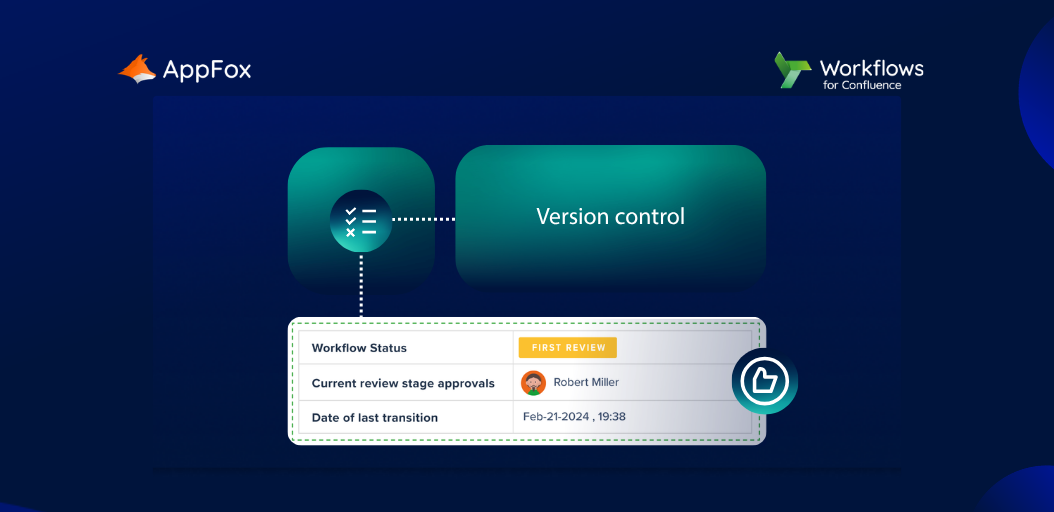
The current status is visible directly on the page, so anyone landing on it knows exactly where it sits in the process without having to dig through the history.
Mandatory approvals before status changes
You can configure workflows so a page literally cannot progress to the next stage without the right people signing off. Approval is logged with name, timestamp, and the version they approved, creating a robust audit trail, not just a page history.
Version locking
Once a page reaches ‘Approved’ or ‘Published’ status, you can configure the workflow to prevent further edits until a new version workflow is initiated. That stops well-intentioned but unauthorized updates.
Out-of-the-box templates for official versioning
This is one of our more recent updates, and we’re excited to share!
When you create a new workflow, you’ll find ready-made templates specifically designed for official versioning processes. Rather than building your approval stages from scratch, you can start from a template that already reflects best practice, and customize it to match your team’s specific requirements.
It’s a meaningful time-saver, especially for teams rolling out governance processes for the first time.
A clear audit trail for compliance
Every status transition, approval, and rejection is logged within Workflows for Confluence. So when an auditor asks, ‘Who approved Version 2.0 of your data retention policy, and when?’ , you’ll have a direct answer, without having to piece together evidence from page history and email threads.
Looking to further enhance compliance?
Explore our Compliance for Confluence app, which can work in partnership with Workflows.
Add structure and standardization with Workflows, and tighten up access controls, data protection and content classification with Compliance.
Confluence version control best practices
Whether you’re working with native features, a workflow tool, or both, here are the practices that make the biggest difference:
Establish a clear versioning convention. Decide on your version numbering scheme (V1.0, V1.1, V2.0, etc.) and document what each increment means. Major version? Significant content change or re-approval required. Minor version? That’s going to be an editorial update that doesn’t change substance.
Use page labels or status macros for quick visibility. Even with native Confluence, you can add labels like ‘draft’, ‘approved’ or ‘archived’ to pages and make them filterable. It’s a manual step (without a tool like Workflows for Confluence), but can help at smaller scales.
Don’t rely on page history as your compliance record. Page history is useful for rollback – but it’s not a substitute for documented approval trails. If your compliance framework requires evidence of review and sign-off, you need a more structured approach.
Archive, don’t delete. When a document is superseded, move it to an archive space or label it clearly rather than deleting it. Regulated industries in particular need to retain previous versions of policies and procedures.
Define who owns each document’s lifecycle. Without clear ownership, documents drift. Someone needs to be responsible for initiating reviews, chasing approvals, and marking documents as current.
How does Confluence version control compare to other tools?
Frequently asked questions
Does Confluence Cloud have version history?
Yes. Every page in Confluence Cloud automatically saves a version history each time the page is saved. You can access this from the ‘…’ menu under Page History.
Can I restore a previous version of a Confluence page?
Yes. Open the page history, click on any earlier version, and you’ll see a Restore this version button. The restored version becomes the new current version, and nothing is lost.
How many versions does Confluence keep?
Confluence Cloud retains all page versions indefinitely. On Data Center, administrators can configure a page history limit, though this is rarely needed at most scales.
Does Confluence have version numbers like V1.0, V2.0?
Not natively. Confluence doesn’t automatically assign formal version numbers to pages. You can add these manually in the page title or content, or use a workflow tool to embed version numbering into a structured document lifecycle process.
What’s the difference between page history and version control in Confluence?
Page history is Confluence’s automatic record of every save event on a page: Useful for rollback and auditing edits. Version control (in the document management sense) refers to a structured process of moving a document through formal lifecycle stages with defined approvals, access controls, and audit trails. The former is built in; the latter needs a workflow layer on top.
Is Confluence good for document version management in regulated industries?
It depends on how you configure it. Confluence’s native page history doesn’t meet the evidence requirements of most compliance frameworks out of the box. With a structured workflow tool like Workflows for Confluence, you can build the approval trails, version locking, and audit documentation that frameworks like ISO 27001, SOC 2, or GxP typically require.
Can I prevent people from editing an approved Confluence page?
Not with native Confluence permissions alone in a dynamic way. But with Workflows for Confluence, you can configure a workflow to automatically restrict edits once a page reaches “Approved” or “Published” status — and require a formal new version process to be initiated before changes can be made.
Wrapping up
Confluence’s built-in version control is genuinely good at what it does: Keeping a reliable history of page changes and giving you a safety net for rollback. For many everyday use cases, that’s plenty.
But for teams that need to formally manage document status, enforce approval processes, and produce evidence for compliance audits, native page history is not a complete solution.
Enter Workflows for Confluence. We created this app to add structured lifecycle management directly inside Confluence, so your team doesn’t have to cobble together a process from email approvals, manual labels, and crossed fingers.
If you’re curious how it works in practice, book a demo and we’ll walk you through it – or try for free on the Atlassian Marketplace!